Connect Kalshi to the trade desk
About 2 minutes. You'll make an API key in Kalshi, then paste it into the trade desk. The same key also imports your Kalshi trades into the tracker.
- 1
Open Account & security, then scroll to API keys
Sign in at kalshi.com. On your phone, tap Account in the bottom bar. On a computer, open the menu at the top right and choose Account & security.
Scroll down to the API keys section.
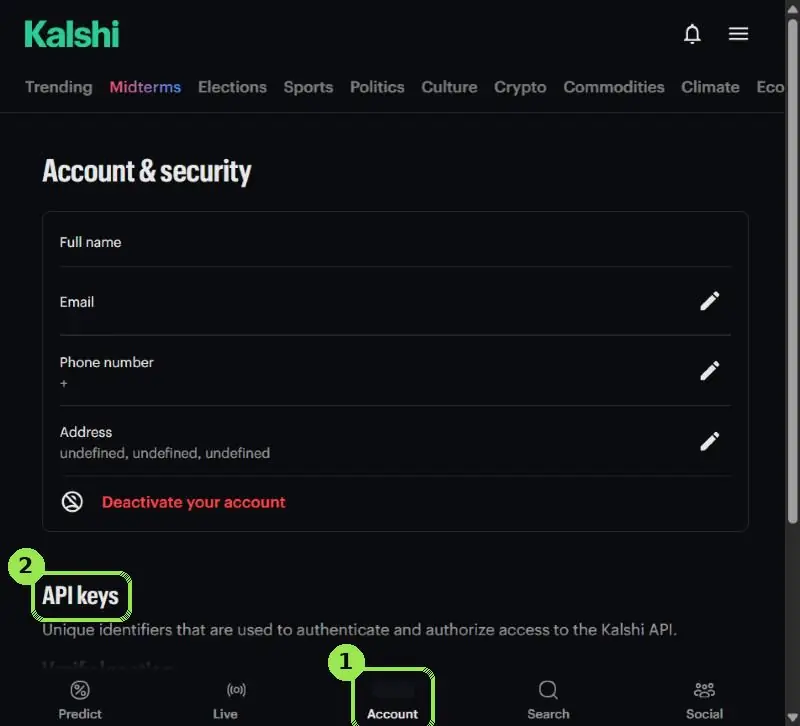
The green box shows where to tap. Personal details are blurred.
- 2
Verify your location, then tap Create key
Kalshi only allows trading through the API after it checks your location. If you see a Verify location button, tap it and allow location in your browser. It stays verified for 7 days.
Then tap Create key.
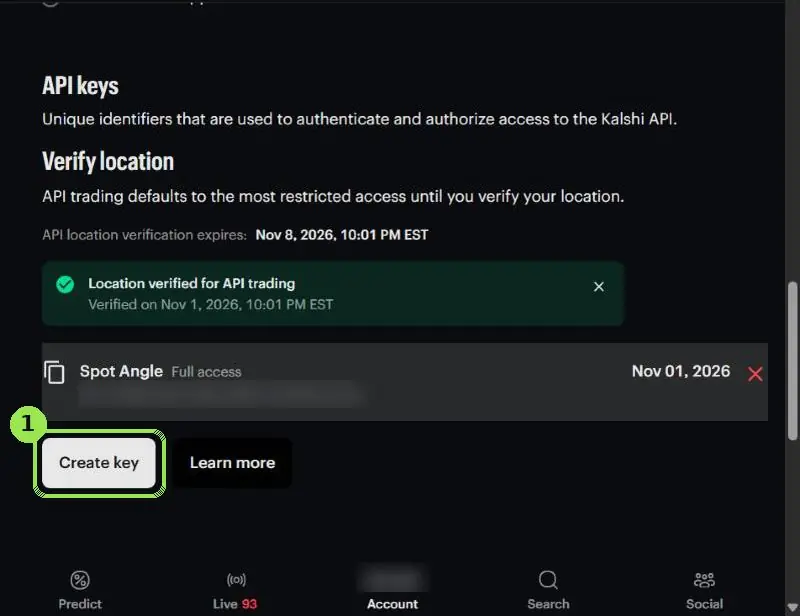
The green box shows where to tap. Personal details are blurred.
- 3
Name it and keep the key type
Nickname: Spot Angle (any name works).
Key type: leave Ed25519 selected. RSA works too.
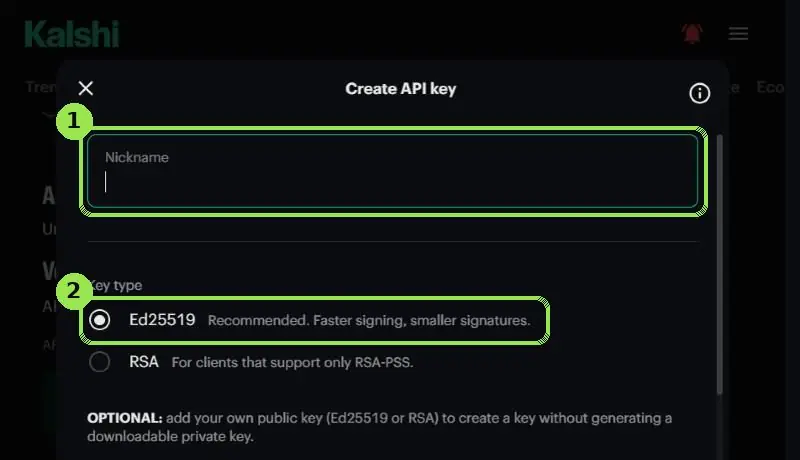
The green box shows where to tap. Personal details are blurred.
- 4
Give it Full access, then tap Create
Check Full access. Spot Angle needs it to place the orders you confirm. With Read only, the trade desk can show your balance but can't buy anything.
Tap Create. Kalshi shows the Key ID and downloads a file with your private key (it ends in .key or .pem). Kalshi shows the private key only once, so keep that file.
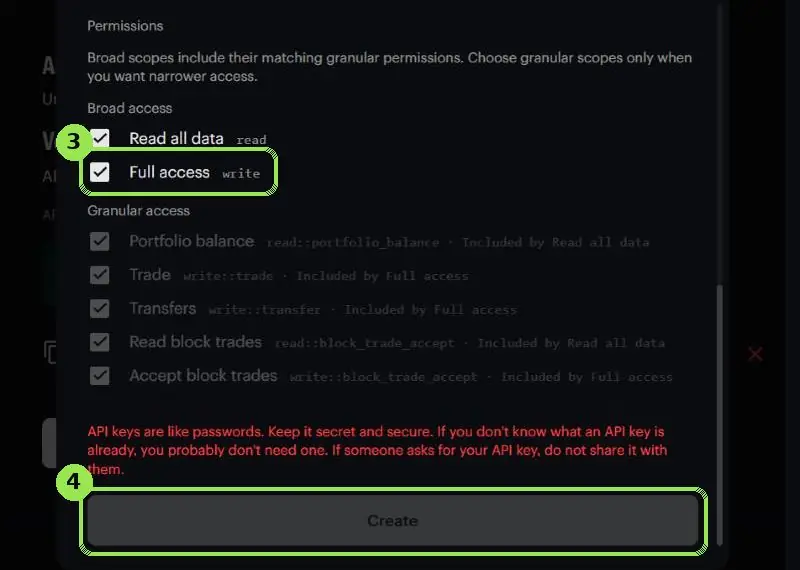
The green box shows where to tap. Personal details are blurred.
- 5
Paste it into the trade desk
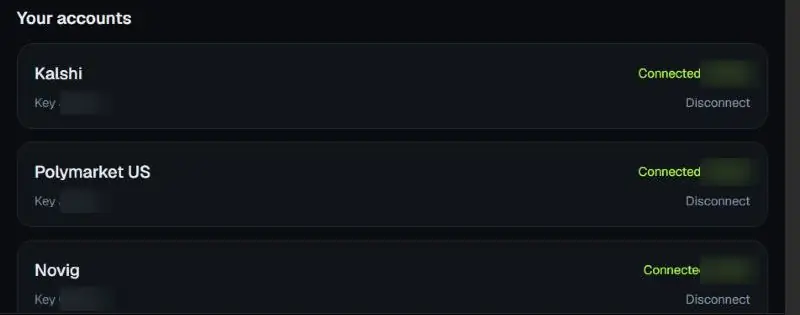
On spotangle.ai/trade, find Kalshi under Your accounts and tap Connect. Paste into the two boxes:
KalshiNot connected1Key ID (copy it from the key's row in Kalshi's API keys list)2The whole private key file: open it in Notepad or TextEdit, select all and copy, including the BEGIN and END linesConnect KalshiWhen it works, the card turns green and shows your balance:
If something goes wrong
- "Couldn't reach Kalshi" or "didn't accept that key" usually means the Key ID and the file are from different keys, or only part of the file was pasted.
- Location verification expires every 7 days. If orders stop going through, verify it again on the same Kalshi page.
- Never share the private key file. Spot Angle stores it encrypted and can't withdraw money.
Other guides: Polymarket US · Novig
Your money stays in your own exchange accounts. Spot Angle stores keys encrypted, only places orders you confirm, and can't withdraw money. 21+.