Connect Novig to the trade desk
About 2 minutes. Novig keeps its API keys in Settings. After you connect, Spot Angle opens a "Spot Angle" subaccount inside your Novig account to trade from.
- 1
Tap your profile picture
Sign in at novig.com and tap your profile picture at the top right.
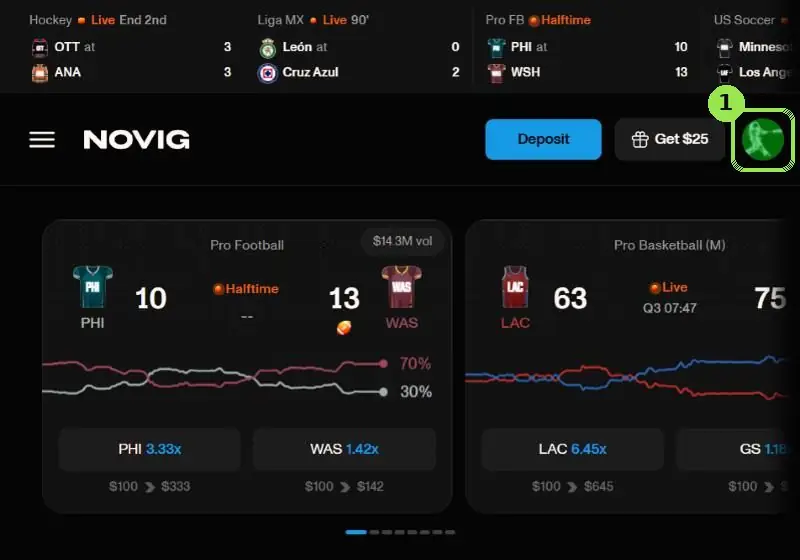
The green box shows where to tap. Personal details are blurred.
- 2
Tap Settings
It's under your name and balance.
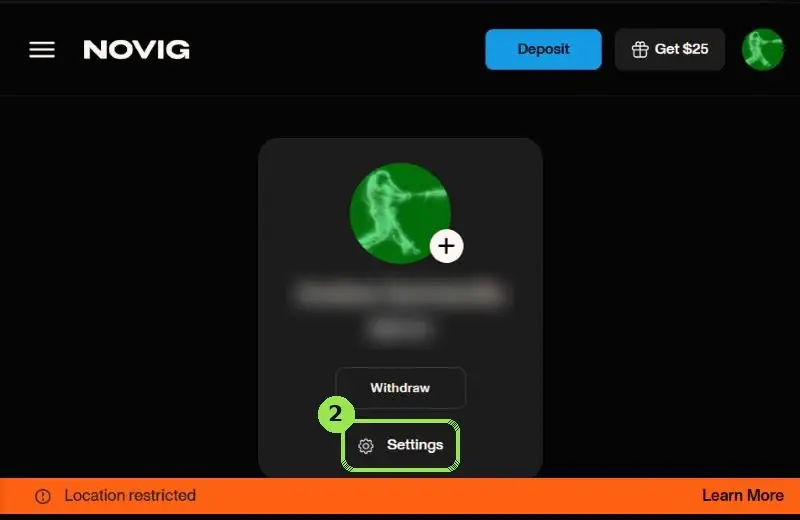
The green box shows where to tap. Personal details are blurred.
- 3
Tap Novig API
Scroll down the Settings list a little to find it.
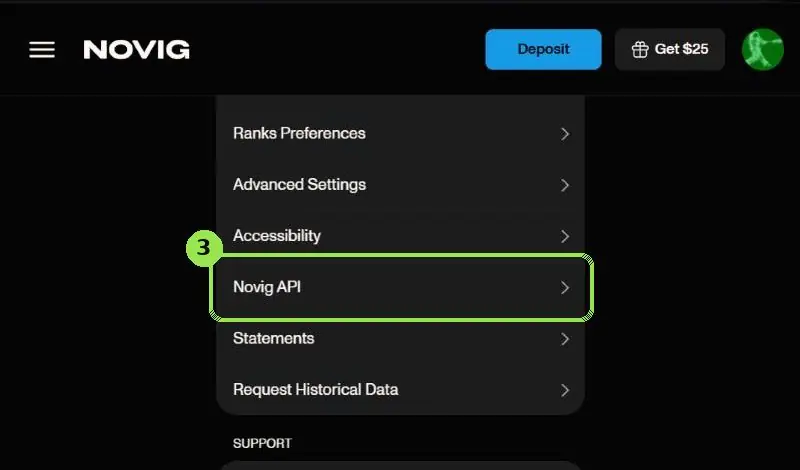
The green box shows where to tap. Personal details are blurred.
- 4
Tap Create Key, once
Give it a nickname such as Spot Angle and confirm. Your browser downloads a file named novig-api-key-<nickname>.pem. Novig never shows it again, so keep it.
The Key ID appears in the list (tap the copy icon next to it).
Only create one key. Novig allows one main key per account, so making a new one cancels the old one and disconnects Spot Angle.
After you connect, a second row named "Spot Angle · Subaccount Spot Angle · Trading" shows up here. That's the trading key Spot Angle made, as in the picture.
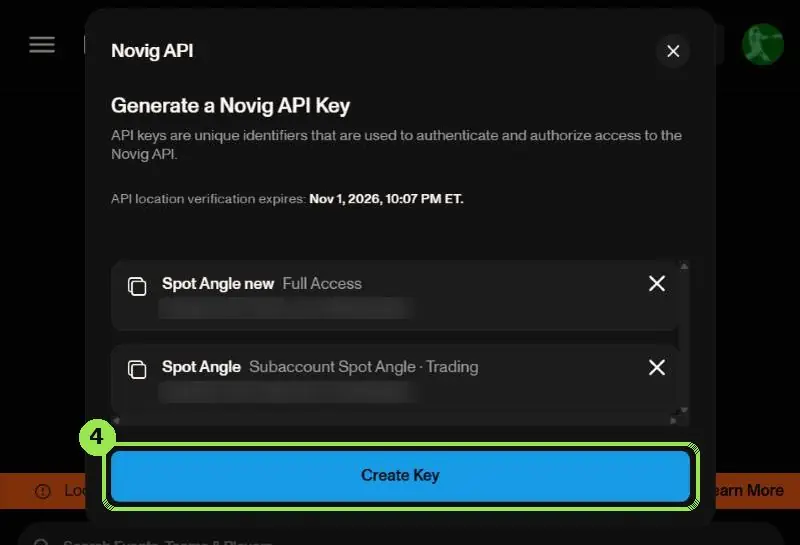
The green box shows where to tap. Personal details are blurred.
- 5
Paste it into the trade desk
On spotangle.ai/trade, find Novig under Your accounts and tap Connect. Paste into the two boxes:
NovigNot connected1Key ID (from the Novig API list)2The whole .pem file: open it in Notepad or TextEdit, select all and copy, including the BEGIN and END linesConnect NovigWhen it works, the card turns green and shows your balance:
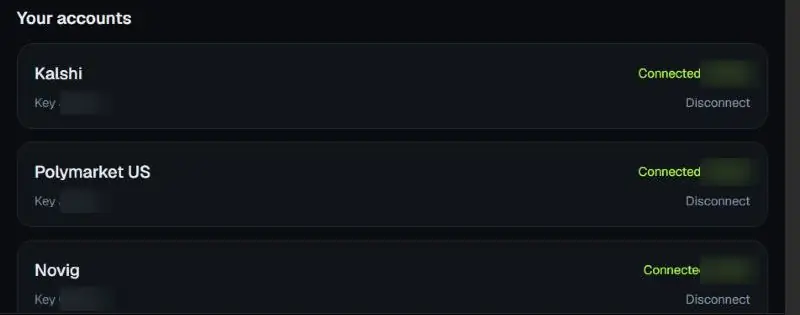
After you connect
- Move money in: on the Novig card on the trade desk, type an amount and tap Move in. It moves from your Novig wallet to the Spot Angle subaccount. It never leaves your Novig account, and Move back to wallet returns it.
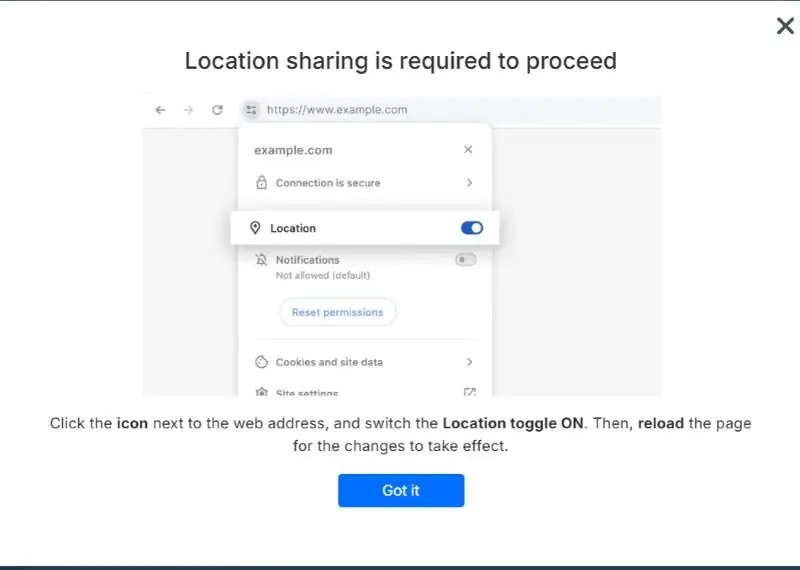
- Allow location: Novig only takes orders if it checked your location in the last 3 days. Allow location for novig.com in your browser (as in the picture below), or open the Novig app on your phone. Novig isn't available in Arizona, Michigan or Nevada.
If something goes wrong
- "Key not working: reconnect" means a new Novig key was created after you connected. Disconnect, then connect again with the newest key ID and .pem file.
- Your Novig app shows your main wallet. Money you moved to the Spot Angle subaccount shows on the trade desk card.
Other guides: Kalshi · Polymarket US
Your money stays in your own exchange accounts. Spot Angle stores keys encrypted, only places orders you confirm, and can't withdraw money. 21+.