Connect Polymarket US to the trade desk
About 1 minute. Polymarket US keeps API keys on a separate developer page, not in the app's menu, which is why it's hard to find.
- You need a Polymarket US account with identity verification approved (done in the Polymarket US app). Keys don't work until you're approved.
- Note: the Trading API link in Polymarket's menu goes to their documentation, not to the keys. Use the button above instead.
- 1
Go to polymarket.us/developer and tap Create API Key
Sign in the same way you sign in to the app (Google, Apple or email).
Tap + Create API Key.
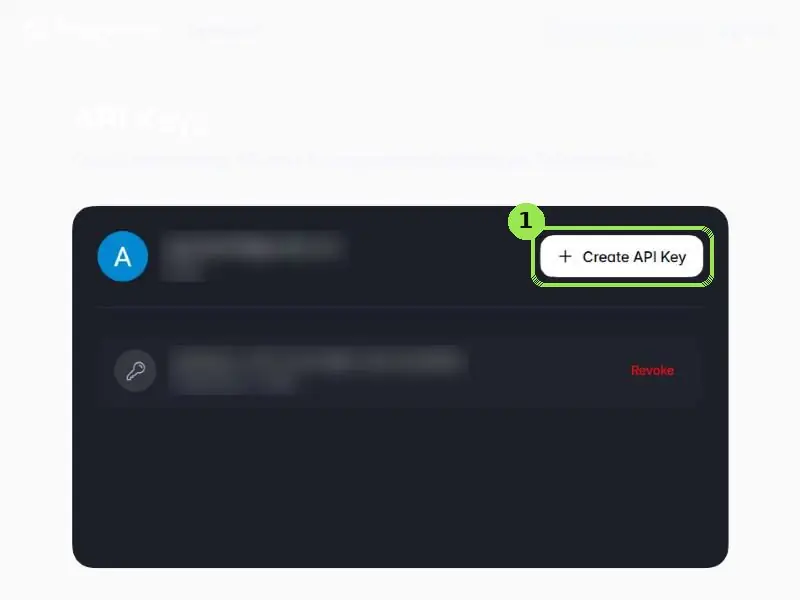
The green box shows where to tap. Personal details are blurred.
- 2
Copy the Key ID and the Secret Key
Polymarket shows a Key ID and a Secret Key (a long string of letters and numbers).
The Secret Key is shown only once. Copy both somewhere safe before you close the box. If you lose it, revoke the key and make a new one.
- 3
Paste it into the trade desk
On spotangle.ai/trade, find Polymarket US under Your accounts and tap Connect. Paste into the two boxes:
Polymarket USNot connected1Key ID2Secret KeyConnect Polymarket USWhen it works, the card turns green and shows your balance:
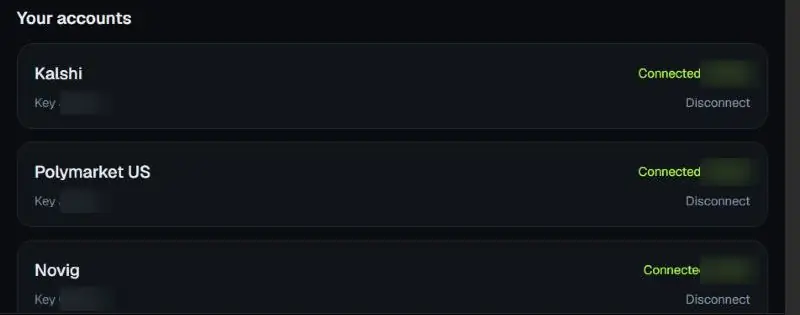
If something goes wrong
- If it says the key wasn't accepted, check you copied the whole Secret Key, with no spaces at the start or end.
- Your key list on the developer page shows each key's ID with a Revoke button, in case you ever want to cut off access.
Your money stays in your own exchange accounts. Spot Angle stores keys encrypted, only places orders you confirm, and can't withdraw money. 21+.